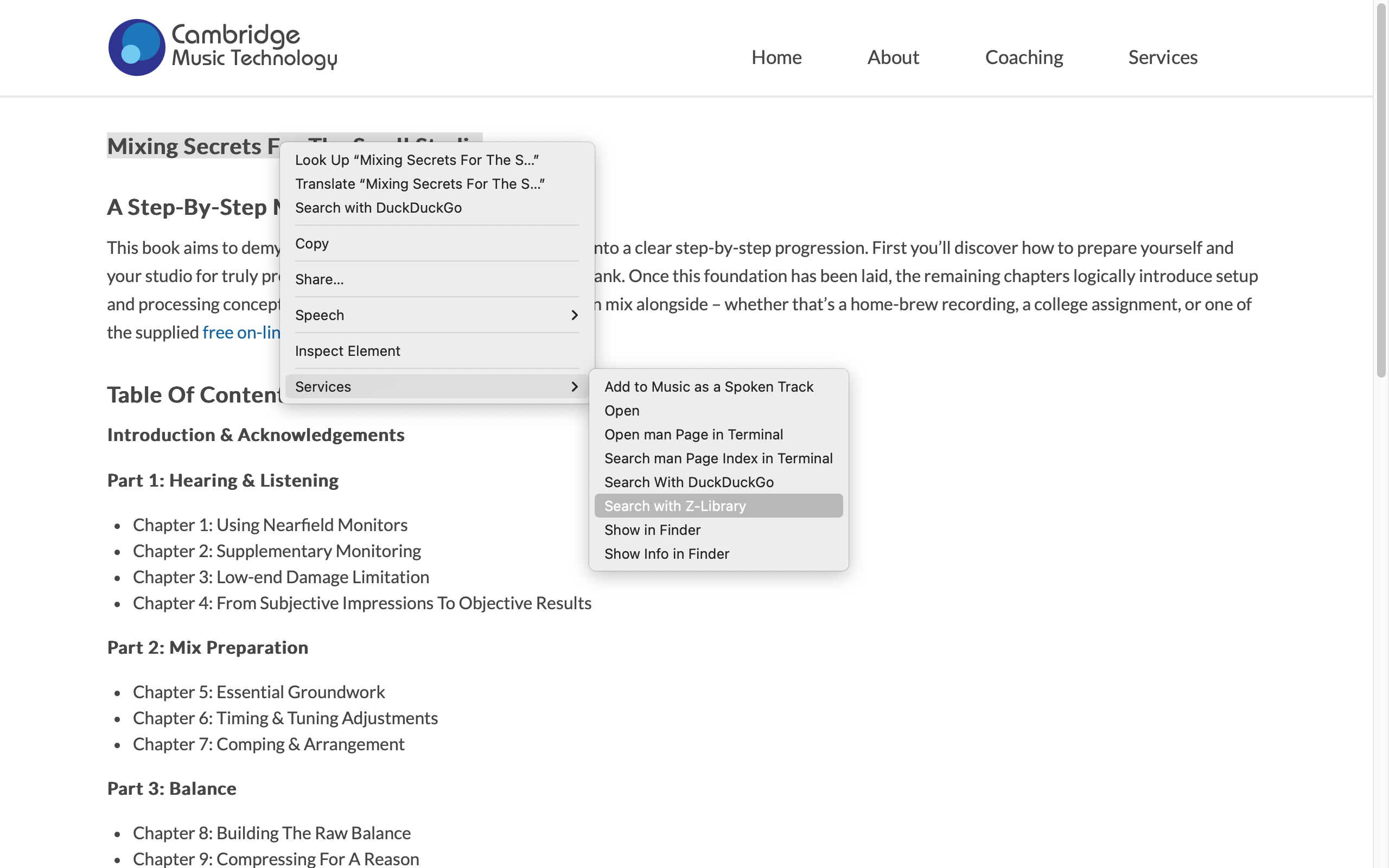
i got really sick of typing in the url for z-library every time i wanted to search for an ebook so i made this quick action using automator on macos. i can now go directly to the z-library search from any webpage by selecting the text with the title and/or author of a book, right-clicking and then accessing the shortcut from the services menu, as shown below.
i honestly have no idea how any of this works. i got the base of this from searching for a way to make a shortcut on automator that searches through a website, and when i found one i just copied it and pasted in the search url for z-library. but here is a step by step of how you can recreate it (or just scroll to the bottom and copy everything from the last image if you are already familiar with automator).
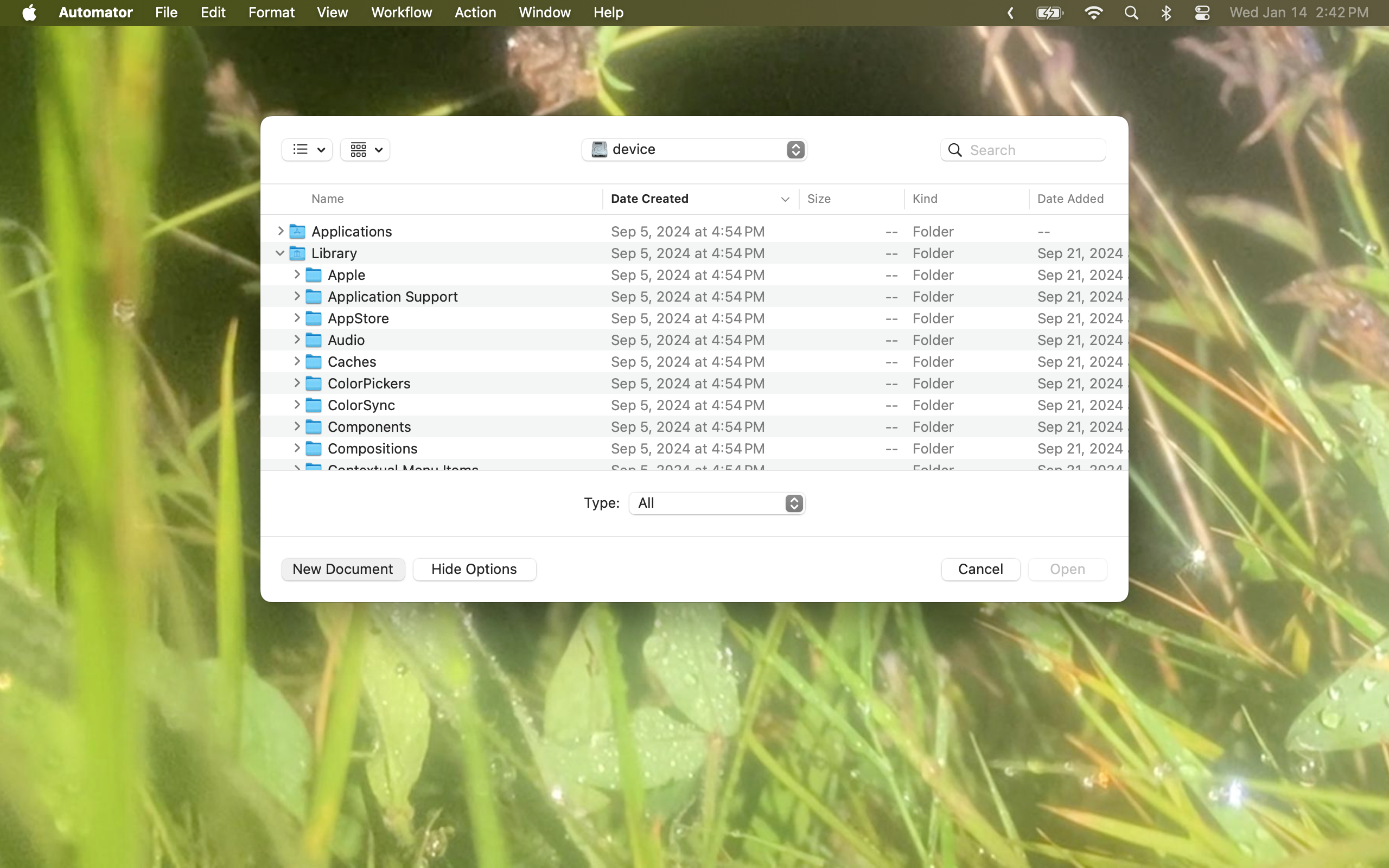
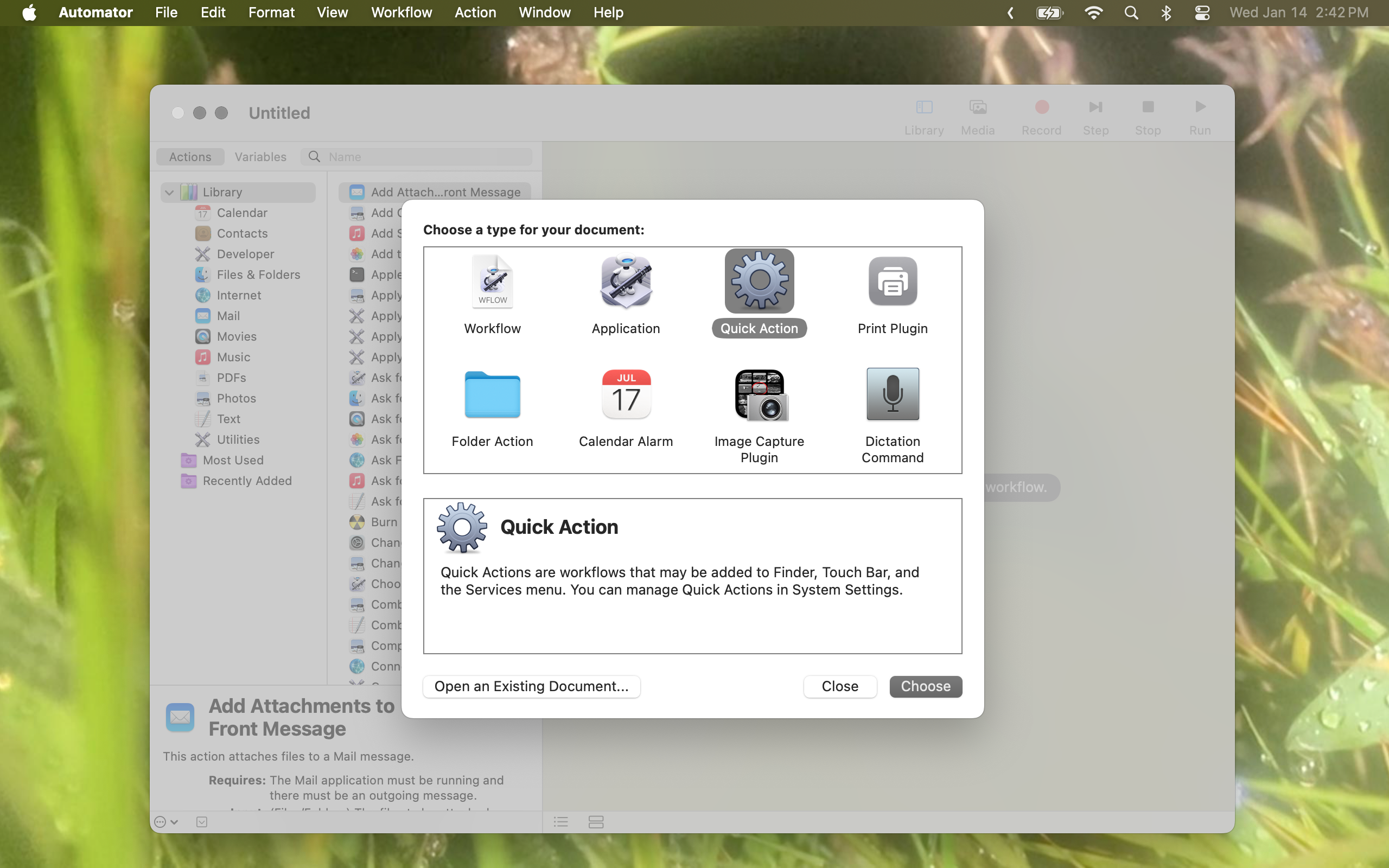
when you open automator it might open a window with showing a folder directory. ignore that and press "new document" on the bottom left. after that it will bring up a window with a for different file types. select "quick action" (the gear icon) and "choose". it will automatically have input set to text, leave it like that
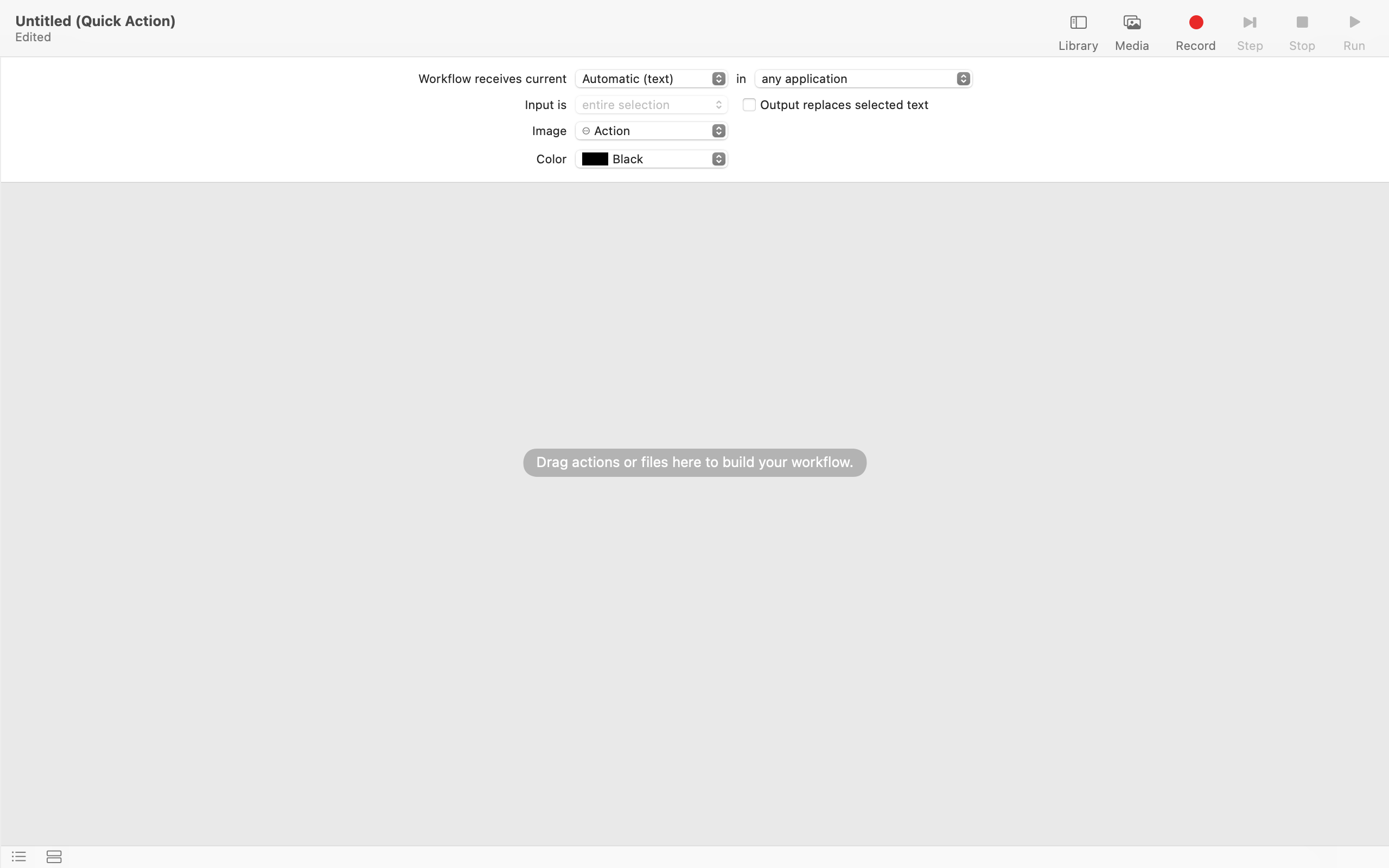
in the side panel you can search for what action you want to come next. search for "run as shell script" and then drag and drop that option into the main window
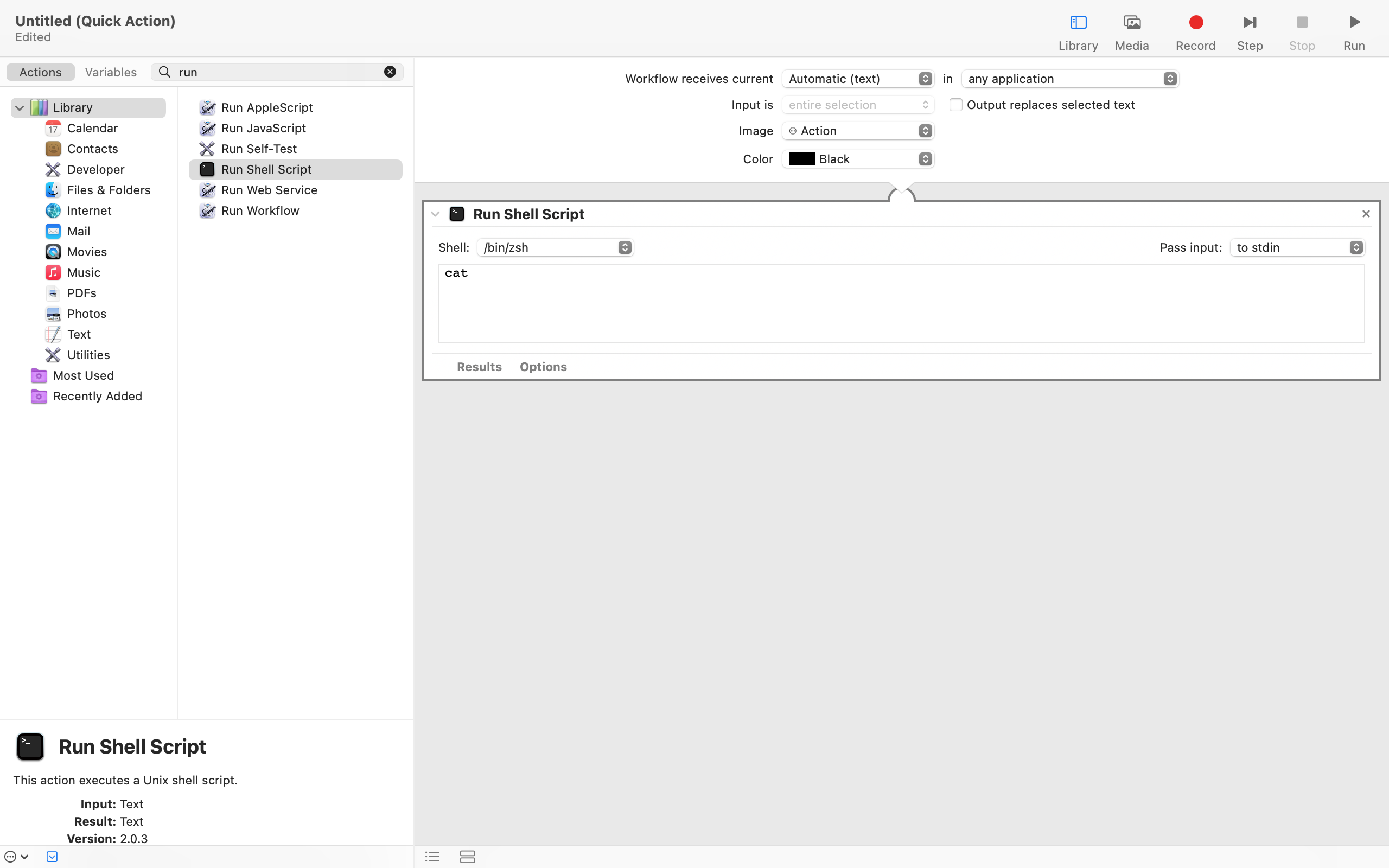
this action should already have the "shell" menu set to "/bin/zsh", but make sure just in case. on the "pass input" dropdown, change it to "as arguments".
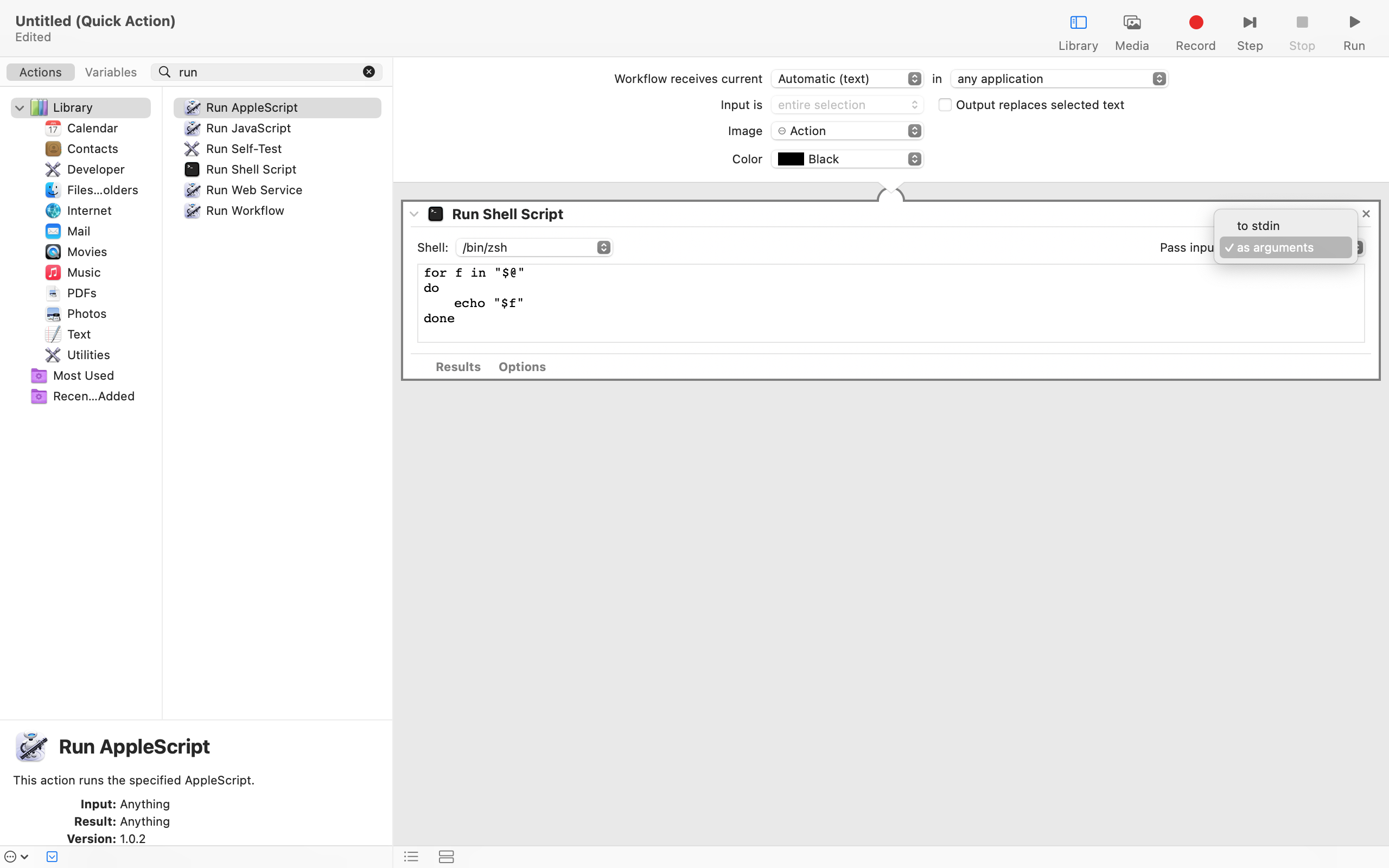
the text in the box will change. select all of the text and hit delete, then put in: open "https://*****/s/${@}", replacing the stars with the url for whatever mirror of z-library you prefer. another way to do this is to go to the z-library mirror, search something, and copy that url and place ${@} into the part of the url that has your search query, then placing that into the quotations in the shortcut.
in the end it should look like this:
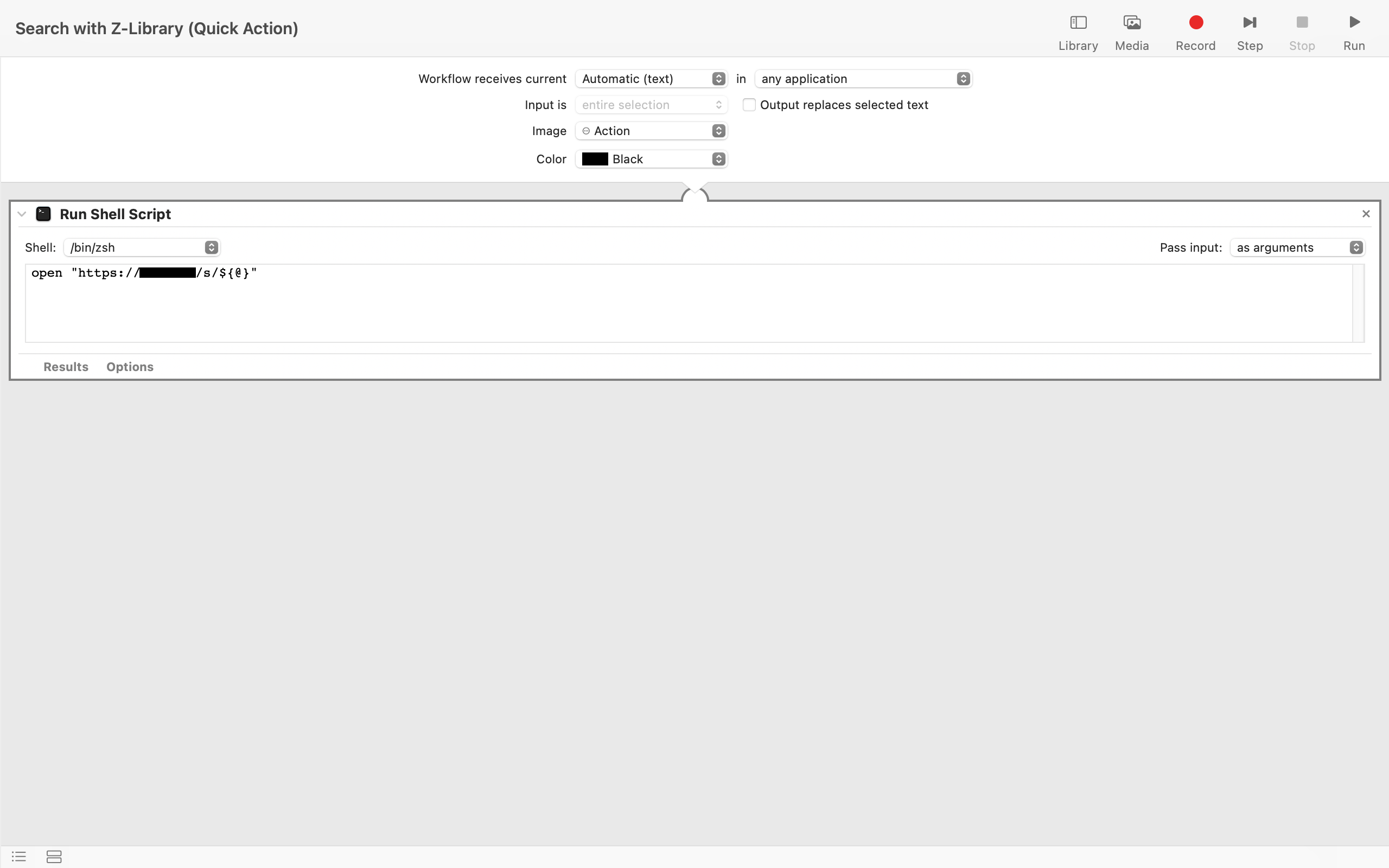
afterward, just press command + s to save and name it whatever you want. it should show up in the service menu automatically.
i hope this made sense. once again, i have no idea how any of this works so i don't know a better way to explain it.